
Vendor Reconciliation Format (Excel, PDF, Word)
Easily track how much you need to pay suppliers using a structured vendor reconciliation format. Compare invoices, payments, and balances to identify mismatches and maintain accurate accounts.
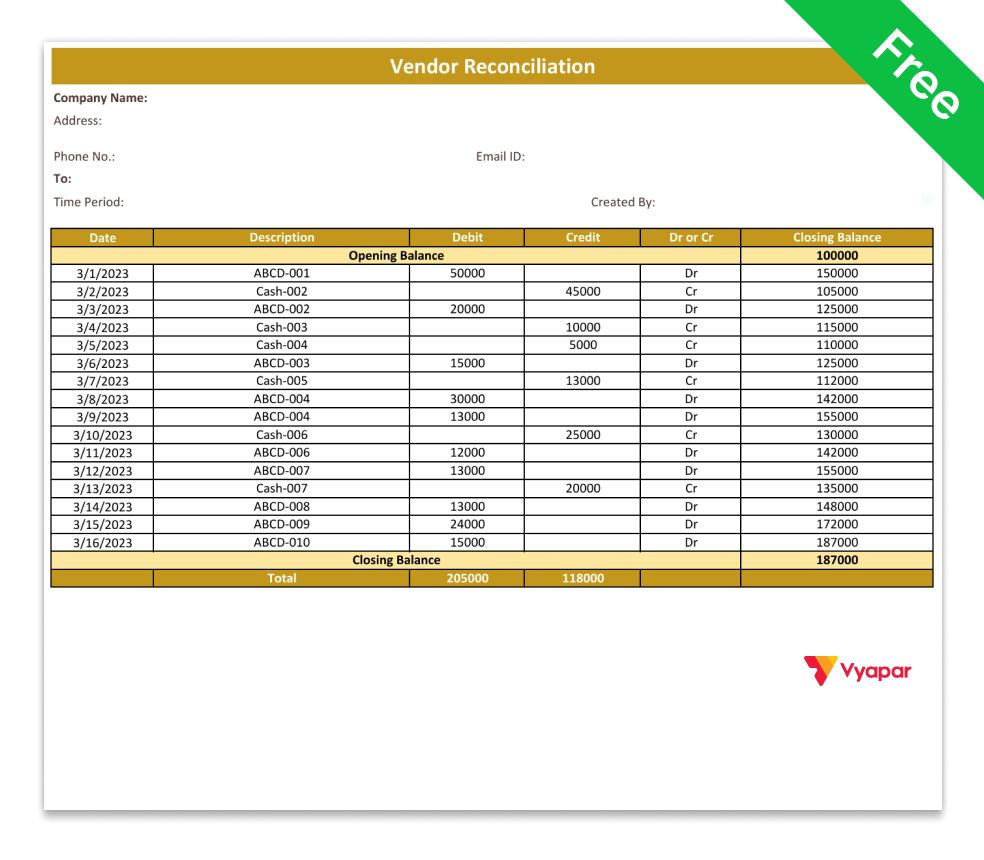
Download Ready-to-Use Vendor Reconciliation Format
Pick the standard vendor reconciliation format, download it in Excel, PDF, or Word, and compare your records with supplier statements for accurate reconciliation.
Vendor Reconciliation Format in Word
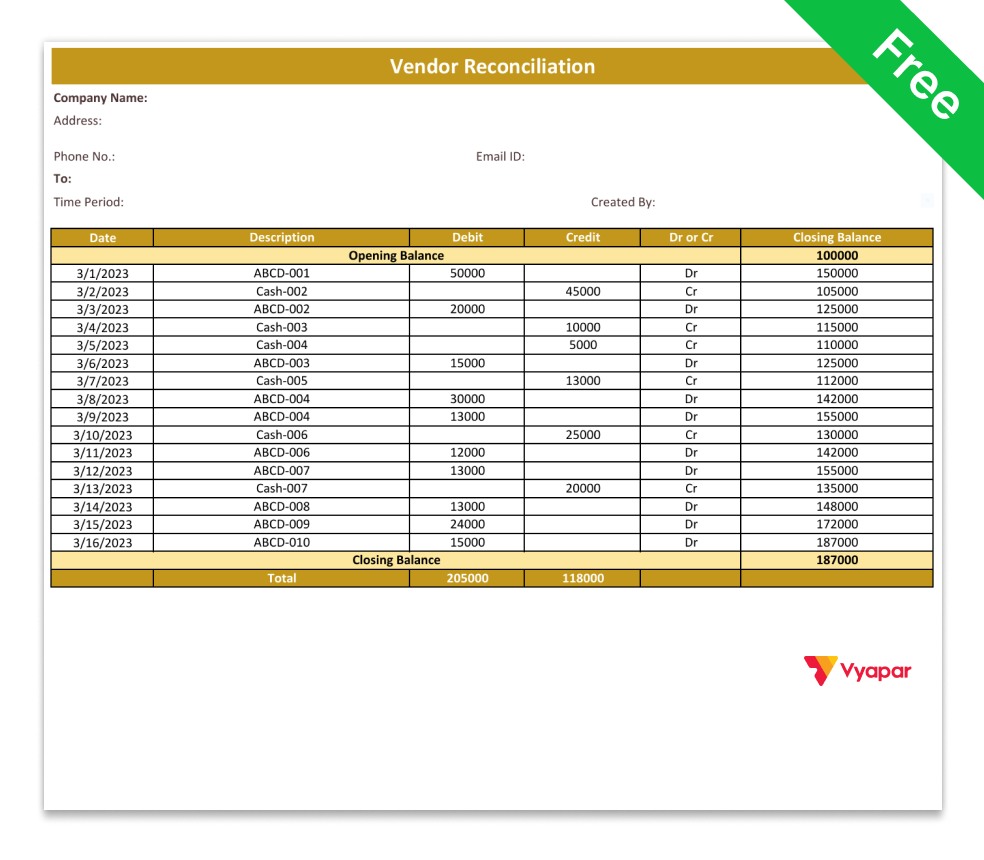
Vendor Reconciliation Format in Word-1

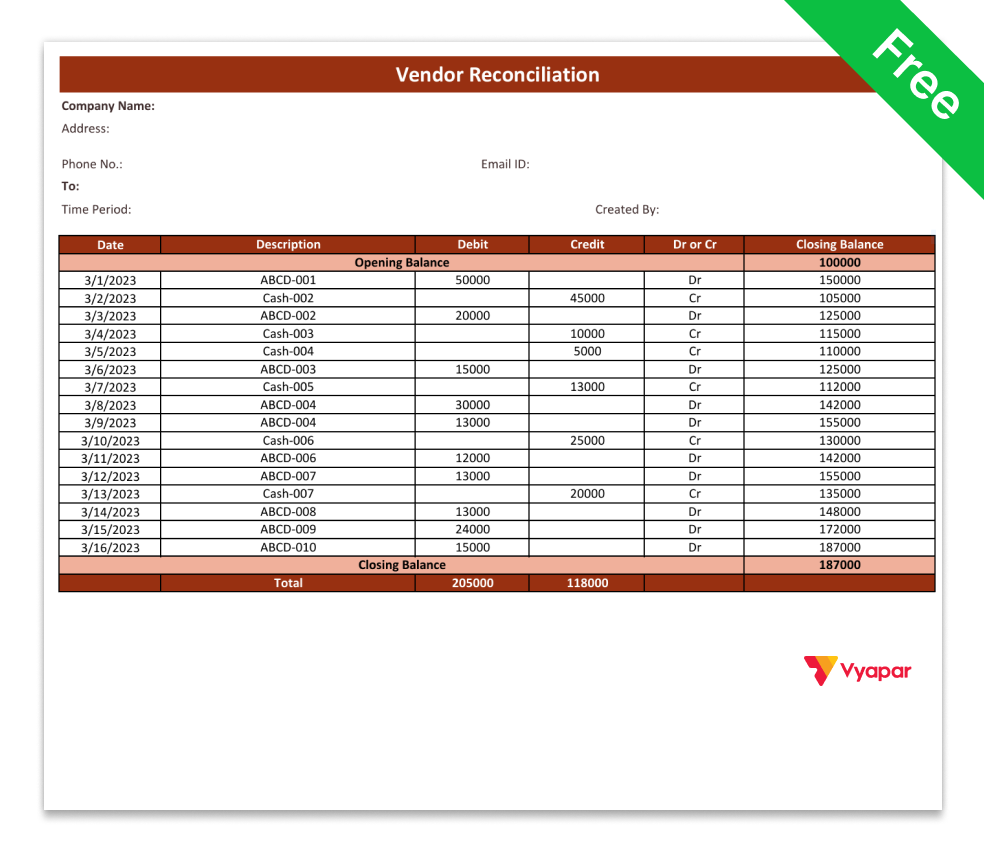
Vendor Reconciliation Format in Word-2
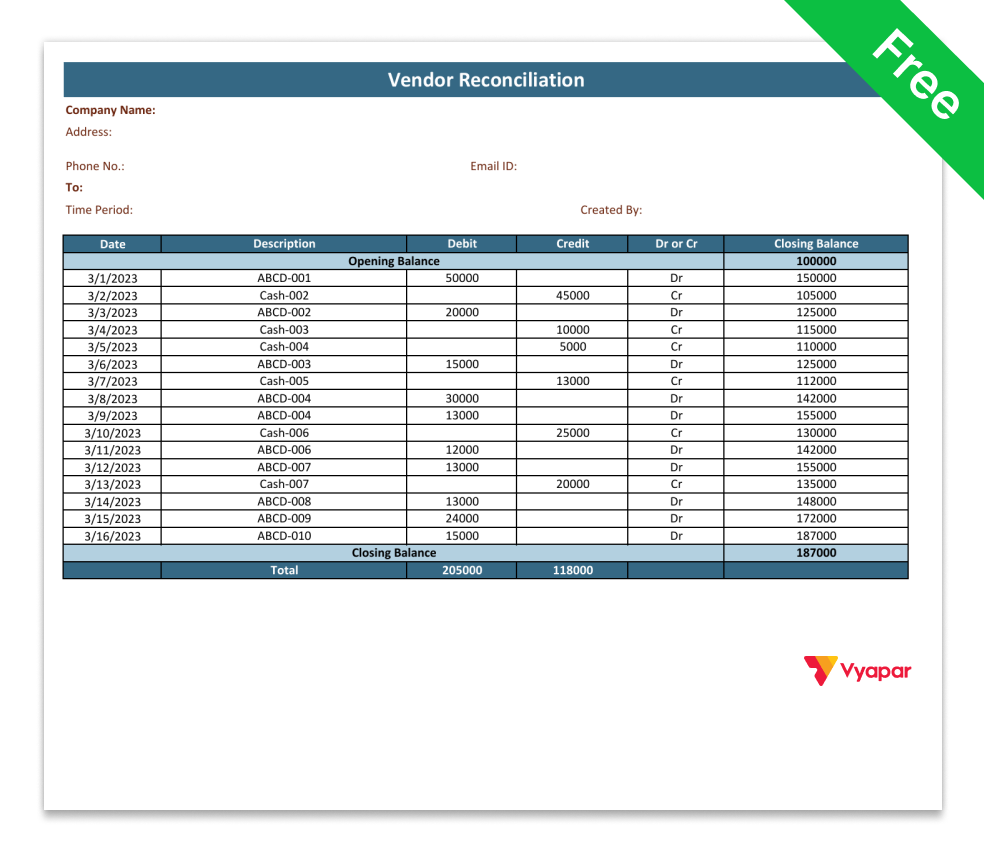
Vendor Reconciliation Format in Word-3
Vendor Reconciliation Format in Excel
Vendor Reconciliation Format in Excel-1
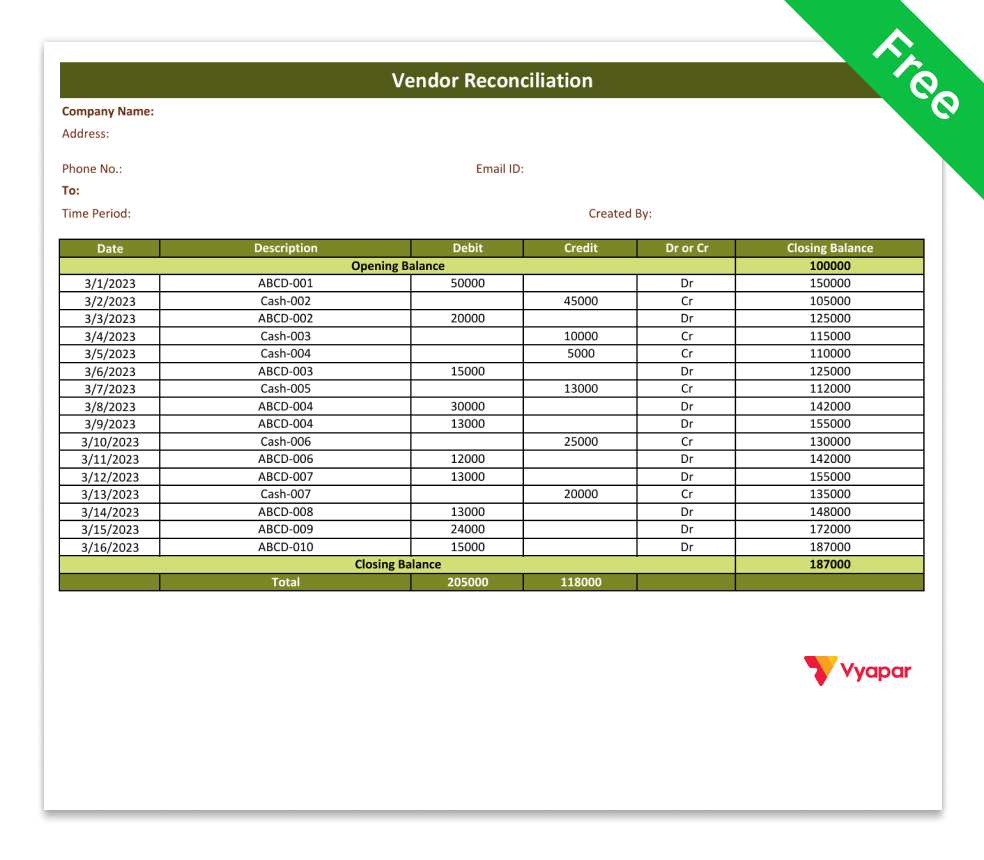
Vendor Reconciliation Format in Excel-2
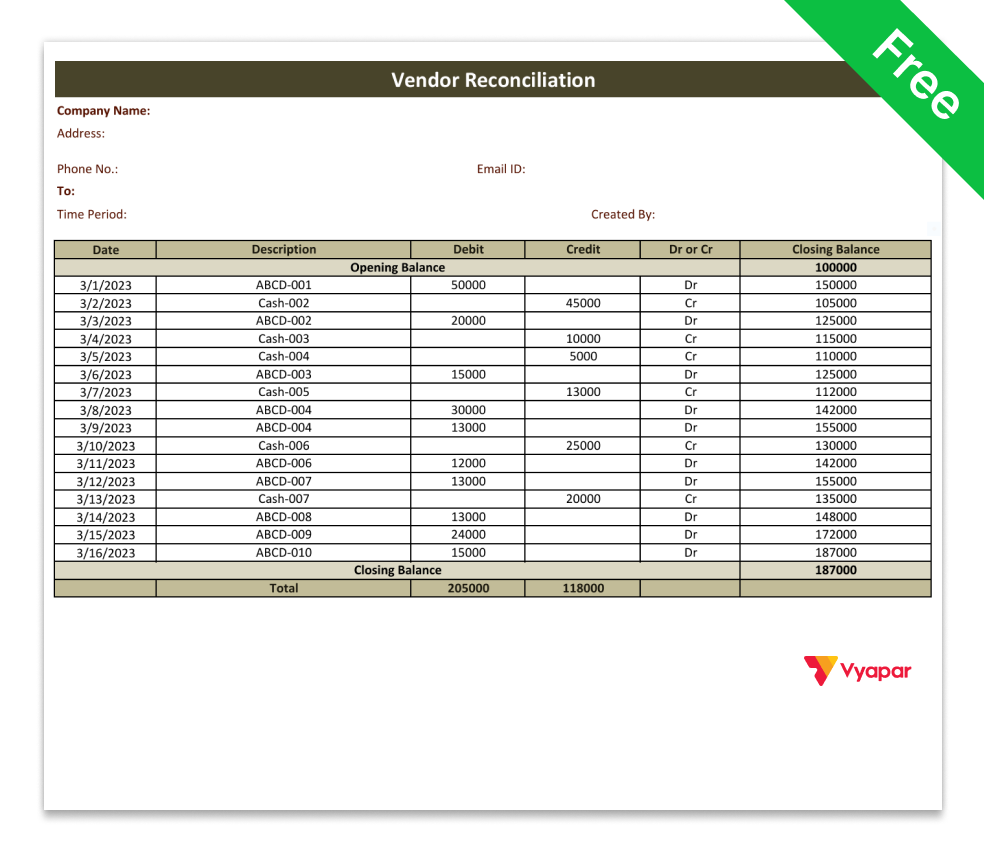
Vendor Reconciliation Format in Excel-3
Vendor Reconciliation Format in PDF
Vendor Reconciliation Format in PDF-1
Vendor Reconciliation Format in PDF-2
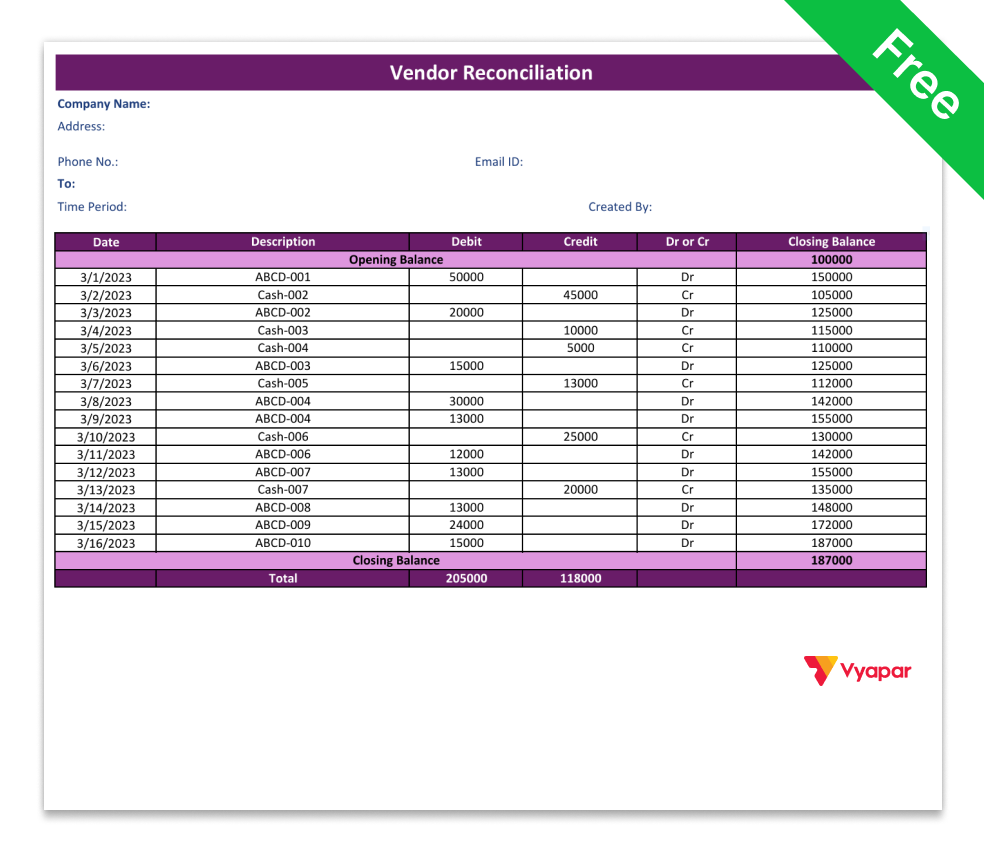
Vendor Reconciliation Format in PDF-3
Why Vendor Reconciliation is Important for Businesses
Shows the Correct Amount to Pay
Helps you clearly see the exact due amount you need to pay your supplier. Prevents confusion about how much you actually have to pay.
Avoids Paying Twice
Ensures you don’t pay the same invoice twice or pay more than the correct amount. Protects your business from losing extra money.
Import of Services
Allows you to quickly spot entry mistakes that could affect your pending payment records. Fixing errors early prevents bigger financial problems later.
Adjusts Discounts Properly
Make sure any returns, discounts, or adjustments are correctly reduced from the amount you have to pay. Keep your payments accurate.
Helps with GST Filing
Ensures your records match the real due amount, reducing the chances of GST errors. Accurate records make tax filing smoother and stress-free.
Improves Vendor Relationships
Helps maintain clear and transparent records with your suppliers. When payments are accurate and on time, it builds trust and strengthens long-term business relationships.
Vendor Reconciliation Step-by-Step Process
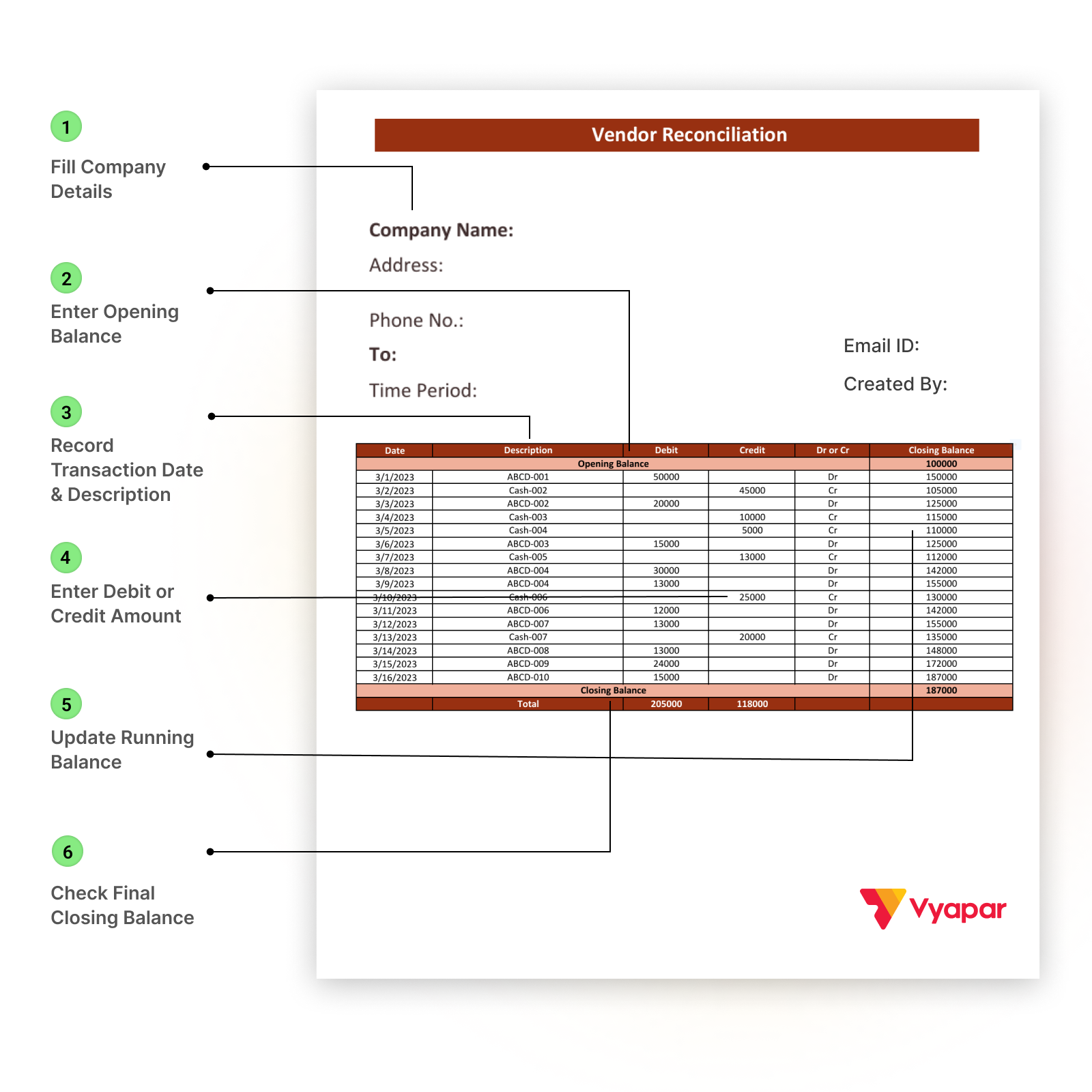
- Fill Basic Details: Enter your Company Name, Address, Phone No., Email ID, Time Period, and Created By details at the top.
- Enter Opening Balance: Write the starting amount under Opening Balance- this is the amount pending before this period starts.
- Record Transaction Date & Description: For every entry, fill in the Date and short Description (like purchase invoice, payment made, etc.).
- Enter Debit or Credit Amount:
Write the amount in either the Debit or Credit column and mark it correctly under Dr or Cr. - Update Running Balance: After each transaction, update the Closing Balance column to show the remaining amount.
- Check Final Closing Balance: At the bottom, confirm the Closing Balance to see the final amount payable or receivable.
Vyapar Features that Help in Vendor Reconciliation
Vendor Ledger Report
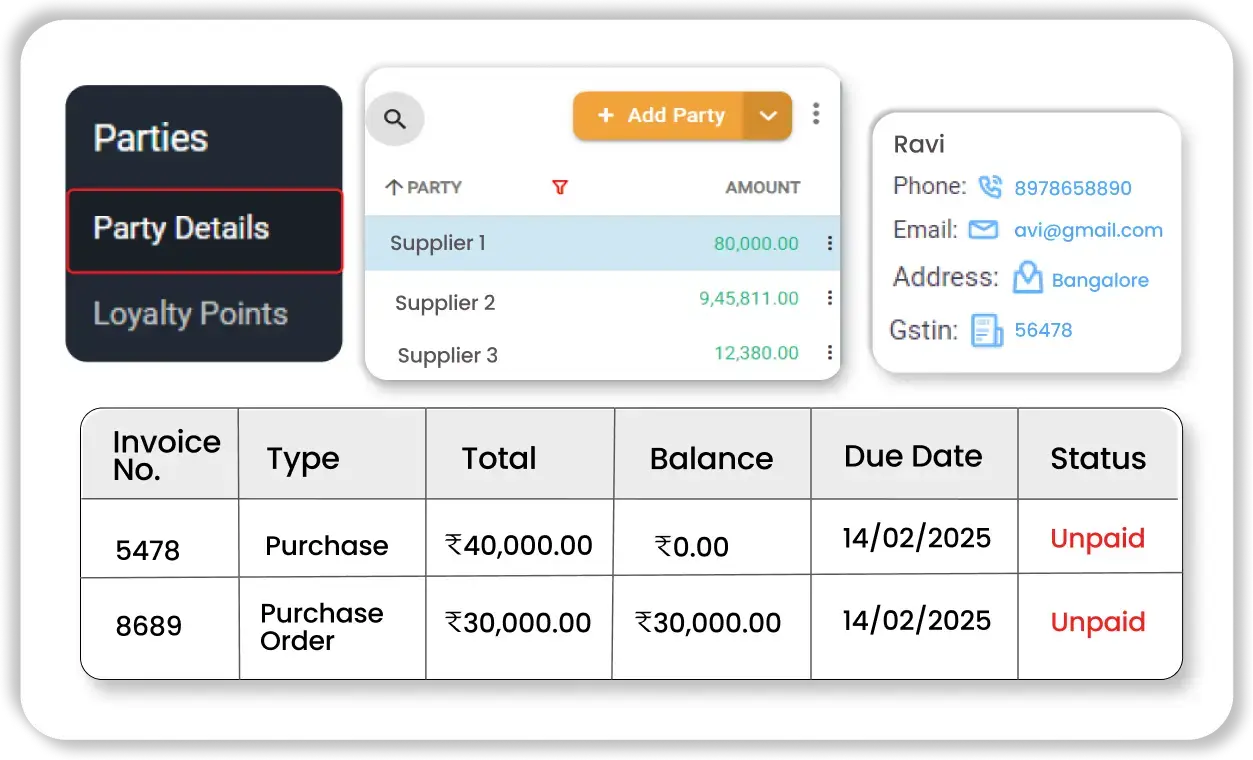
Vendor Ledger Report
Shows complete details of purchases, payments, and the closing balance for each supplier. This makes it easy to match your records with the supplier’s statement.
Real-Time Due Amount Tracking

Real-Time Due Amount Tracking
Automatically updates the amount you need to pay whenever you enter a bill or record a payment. You always see the correct balance.
Outstanding Payment Report
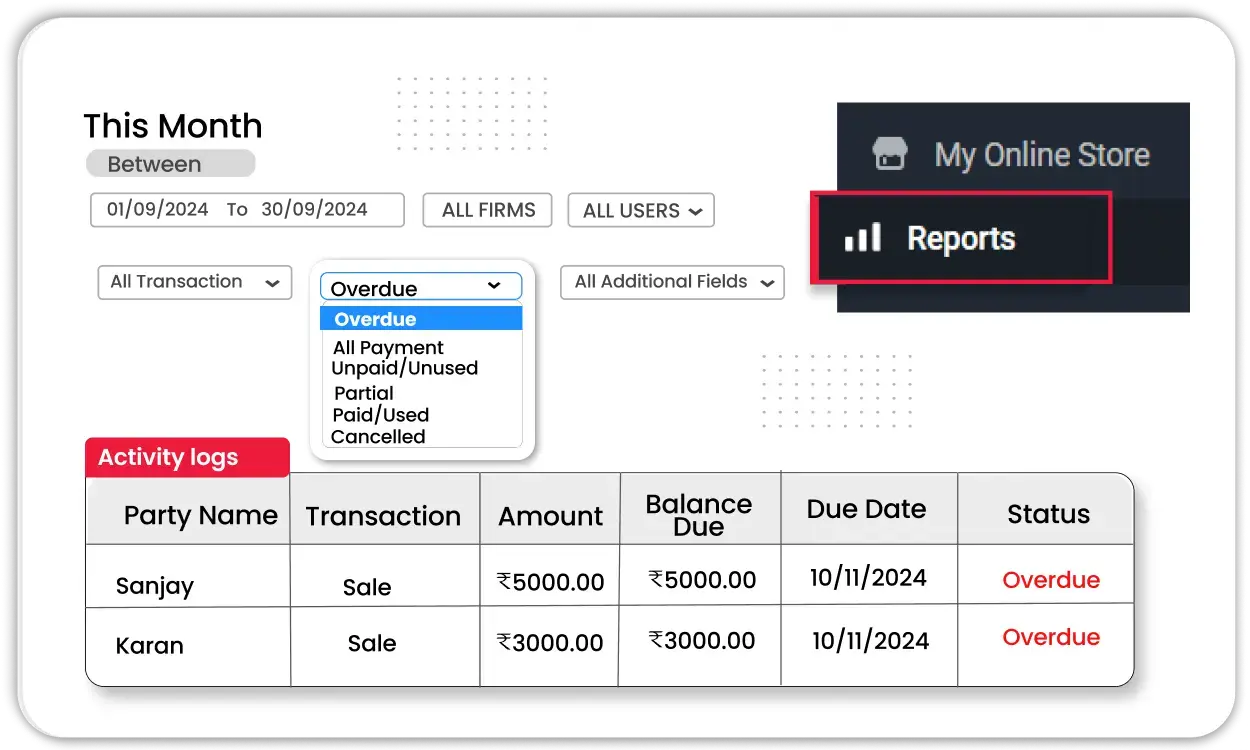
Outstanding Payment Report
Displays all pending payments vendor-wise. Helps you quickly check which balances need reconciliation.
Bill and Payment Entry Management
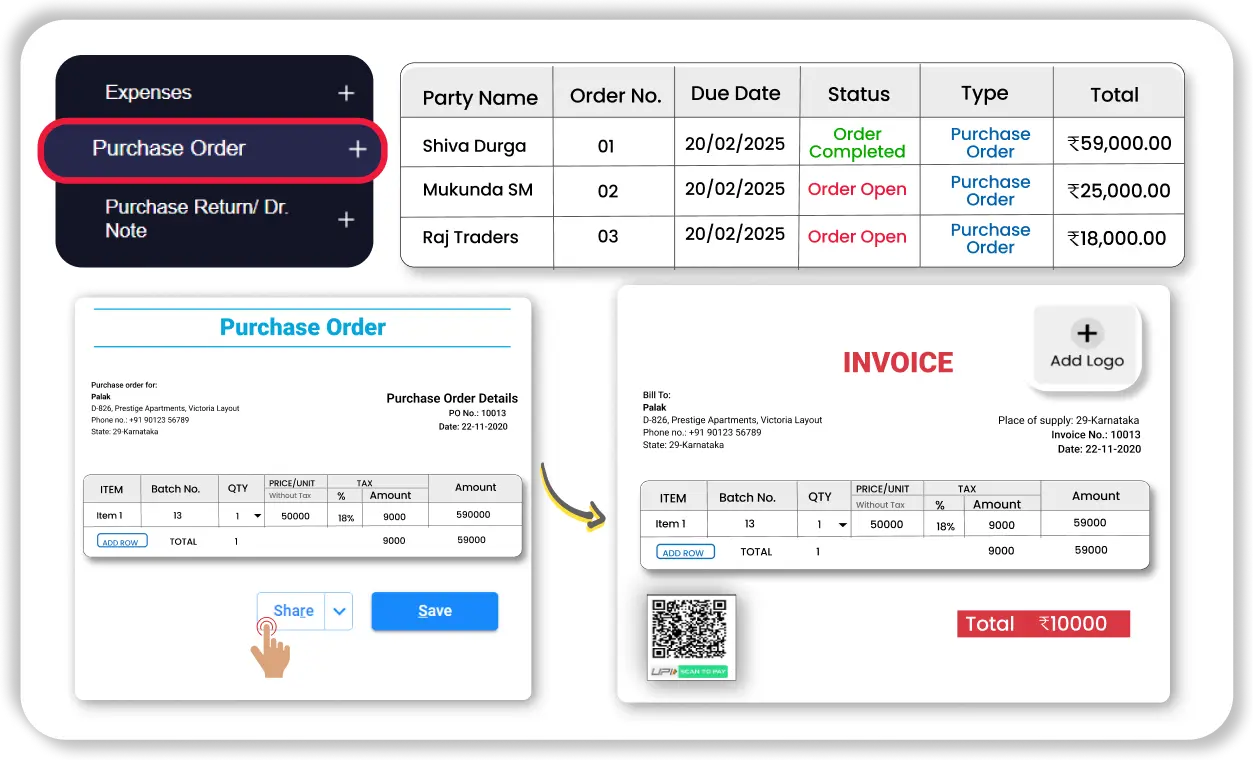
Bill and Payment Entry Management
Allows you to record purchase bills and link payments properly. This ensures accurate matching during reconciliation.
Export Reports in Word and PDF
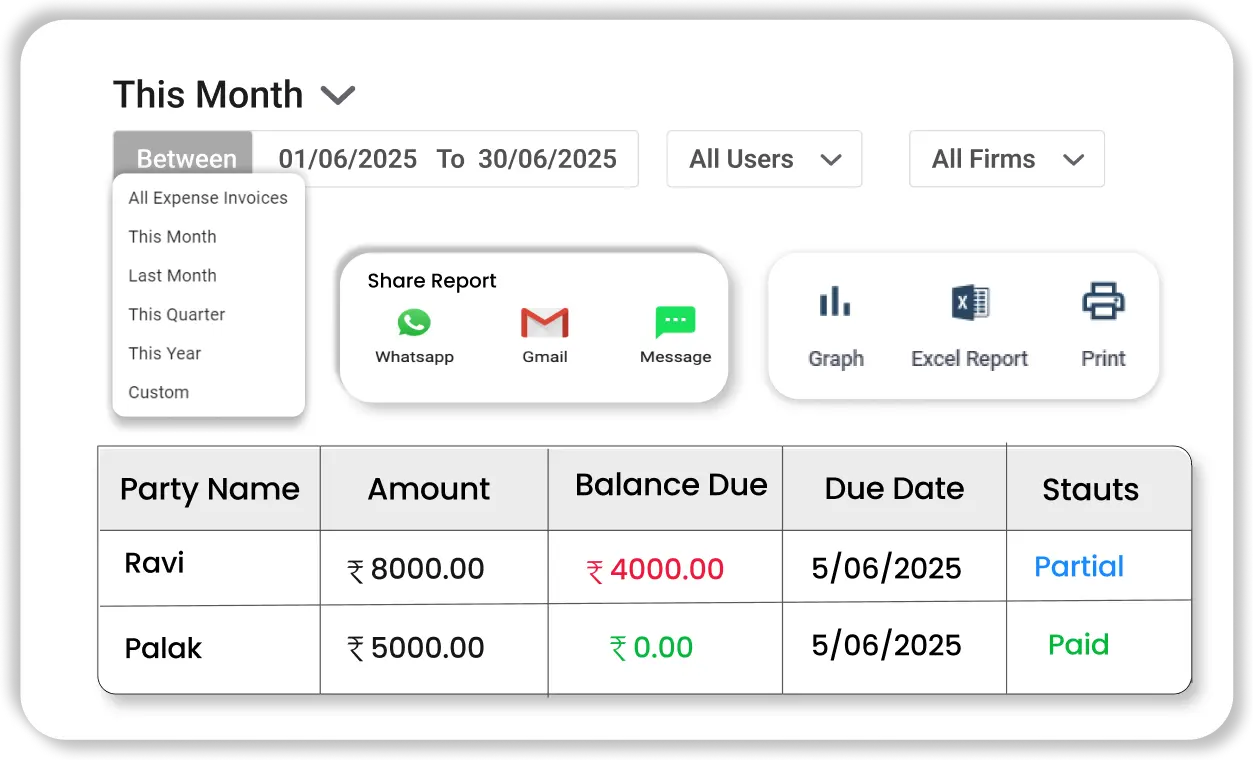
Export Reports in Word and PDF
Let’s download the vendor ledger and outstanding reports in Word or PDF format. Makes it easy to share, review, and complete reconciliation.


Get a Free Demo
Frequently Asked Questions (FAQ’s)
Vendor reconciliation is the process of matching your purchase and payment records with the supplier’s statement to confirm the correct due amount. With Vyapar App, this becomes easier because vendor ledger reports automatically show purchases, payments, and the final balance in one place.
The vendor reconciliation process involves recording bills, updating payments, generating the vendor ledger, and comparing it with the supplier’s statement. Vyapar simplifies this by automatically updating balances whenever a bill or payment is entered.
First, record all purchase bills. Then record payments made, generate the vendor ledger report, collect the supplier’s statement, and match both balances.
Create columns for invoices and payments, then use formulas like SUMIF to calculate totals and VLOOKUP to find differences. While Excel requires manual formula setup, Vyapar automatically calculates balances and generates ready-to-use Excel reports, saving time and reducing errors.
Vendor reconciliation statement format includes invoice number, date, purchase amount, payment amount, difference, and remarks.
Vendor ledger reconciliation means checking the vendor balance in your records against the supplier’s statement. Vyapar makes this simple by showing the complete vendor history, including opening balance, purchases, payments, and closing balance.
Vendor reconciliation software is an accounting system that records bills and payments, calculates balances automatically, and generates vendor reports for comparison..
Did not find what you were looking for?


Billing software in India for small businesses




